
Automation
Automatically sync contacts and companies from HubSpot and Yess
Data Sync
Write activities to HubSpot from Yess
Time Saving
Save time by eliminating manual data entry and updates
View Records
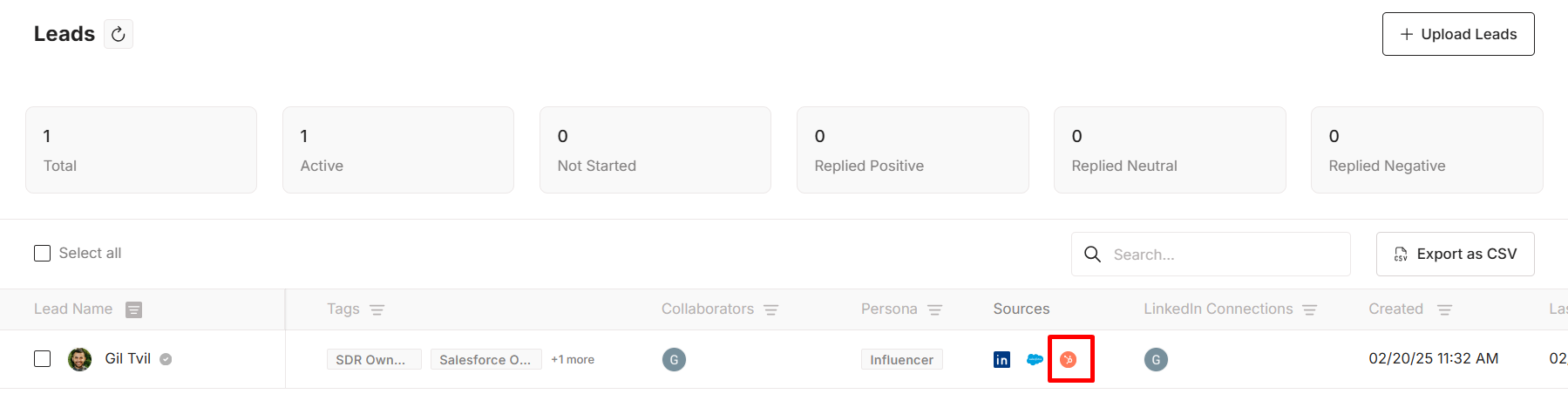
View records in hubspot
- Authorizing the Yess app in HubSpot
- Setting up custom properties (optional)
- Configuring your sync preferences
- View records in hubspot
Connect Yess to HubSpot
Before you can take advantage of Yess’s HubSpot integration, you must connect your HubSpot account to your Yess account. This is required in order for activities you log in Yess to sync to HubSpot. To Connect your Yess Account to your HubSpot Account, follow these steps:Authorize the Yess App (Admin integration steps)
These steps require HubSpot administrator access.
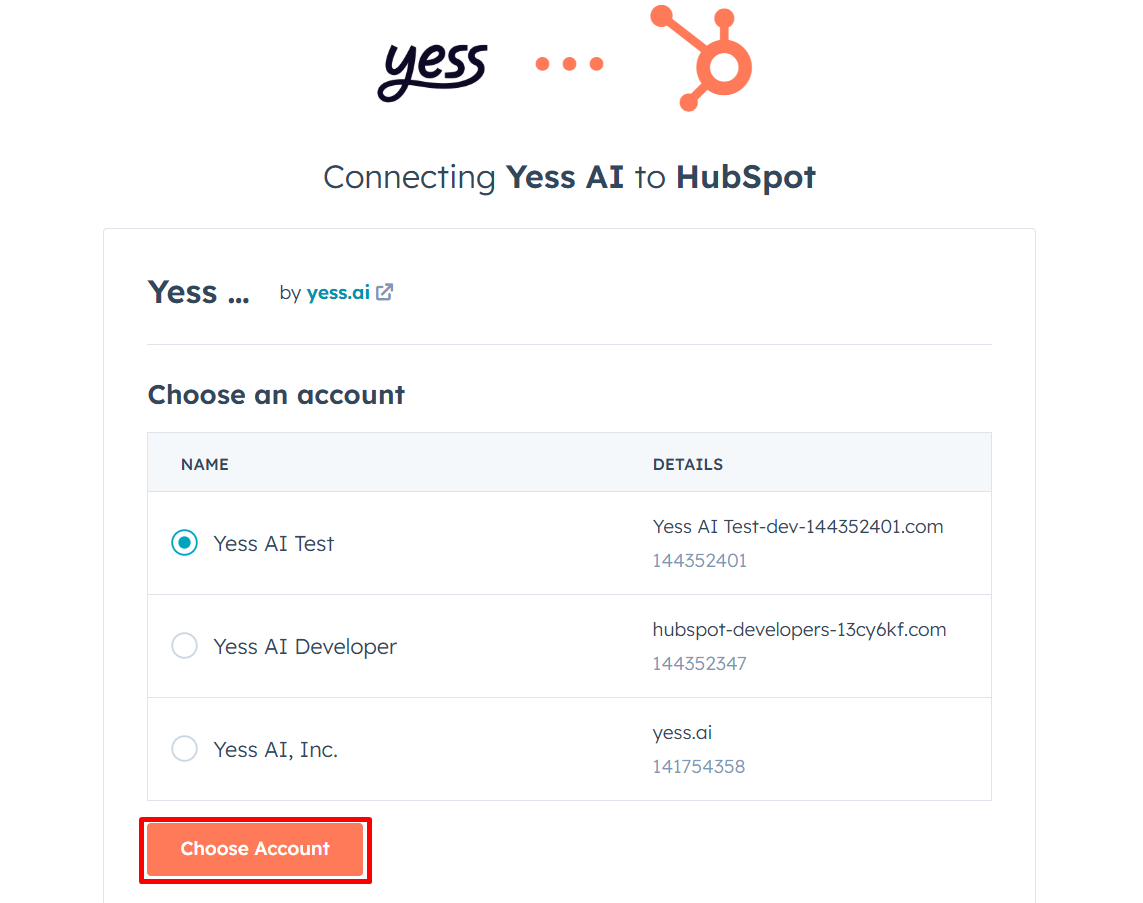
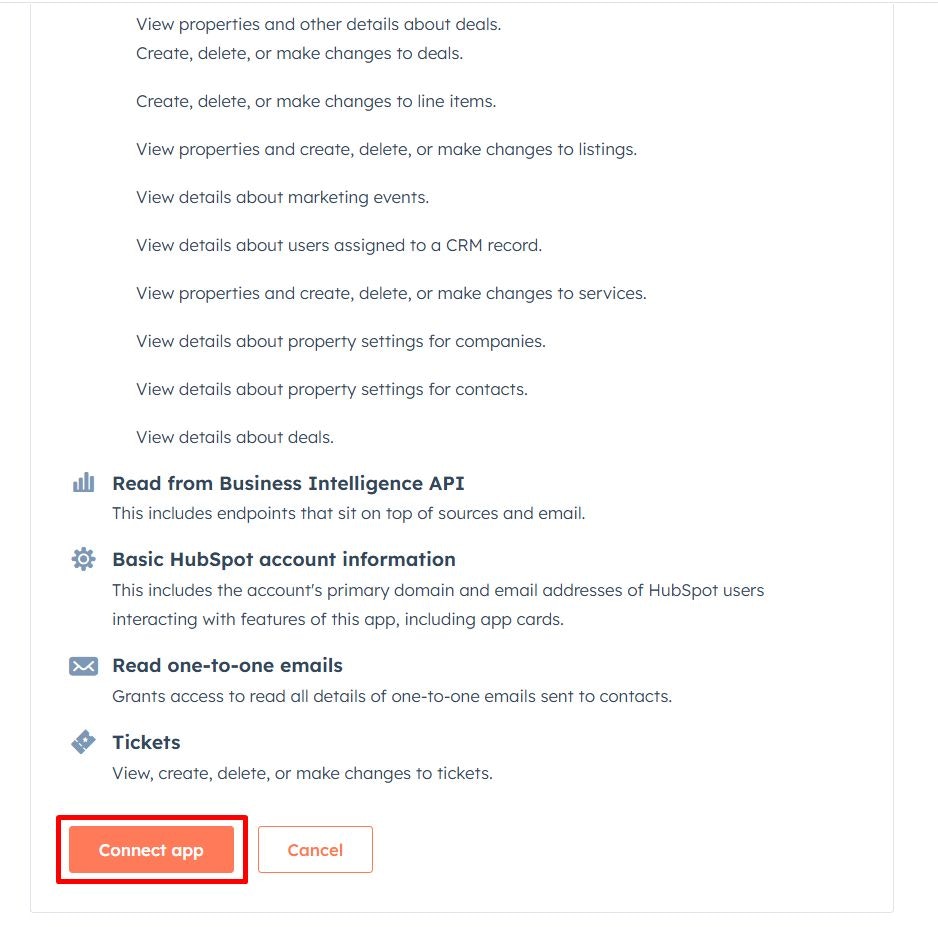
Use the Magic Link
Click the [Magic Link] provided by Yess to be redirected to HubSpot.
You should have received an email with a magic link to authorize the Yess app.
https://dashboard.yess.ai/integrations/admin/hubspot?token=XXXXX
Create a Custom Property (Optional)
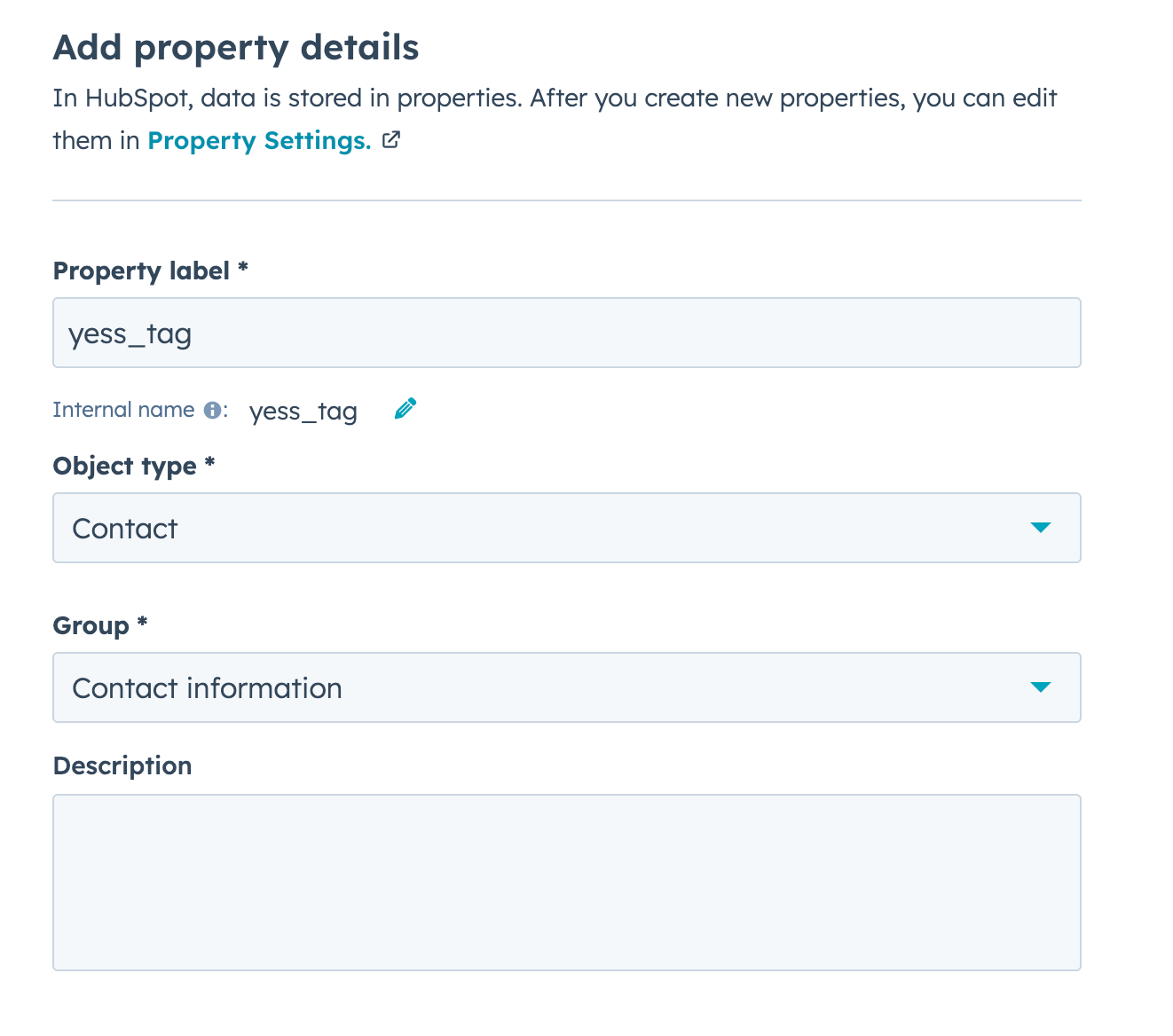
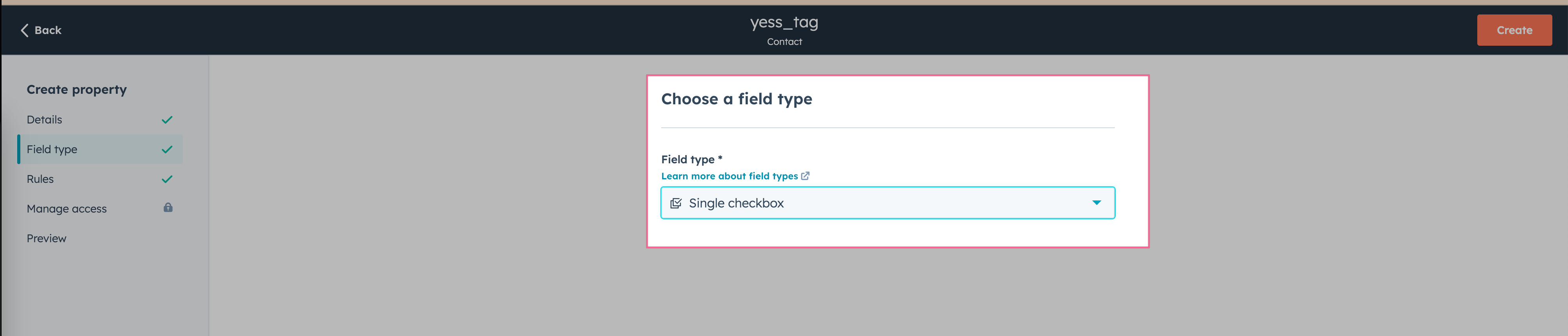
Define Custom Property
In case you don’t have a predefined criteria to sync, you can create a Yess Tag custom property on Contact, Company, or both objects to ensure proper synchronization between HubSpot and Yess.How to create a custom property: https://knowledge.hubspot.com/properties/create-and-edit-properties
User integration steps
After your HubSpot administrator has connected Yess to your organization’s HubSpot account, each individual user needs to connect their own HubSpot user account to maintain proper lead ownership during synchronization.Connect your personal HubSpot account
Access Your Yess Integration settings
Navigate to your Integration settings in the Yess dashboard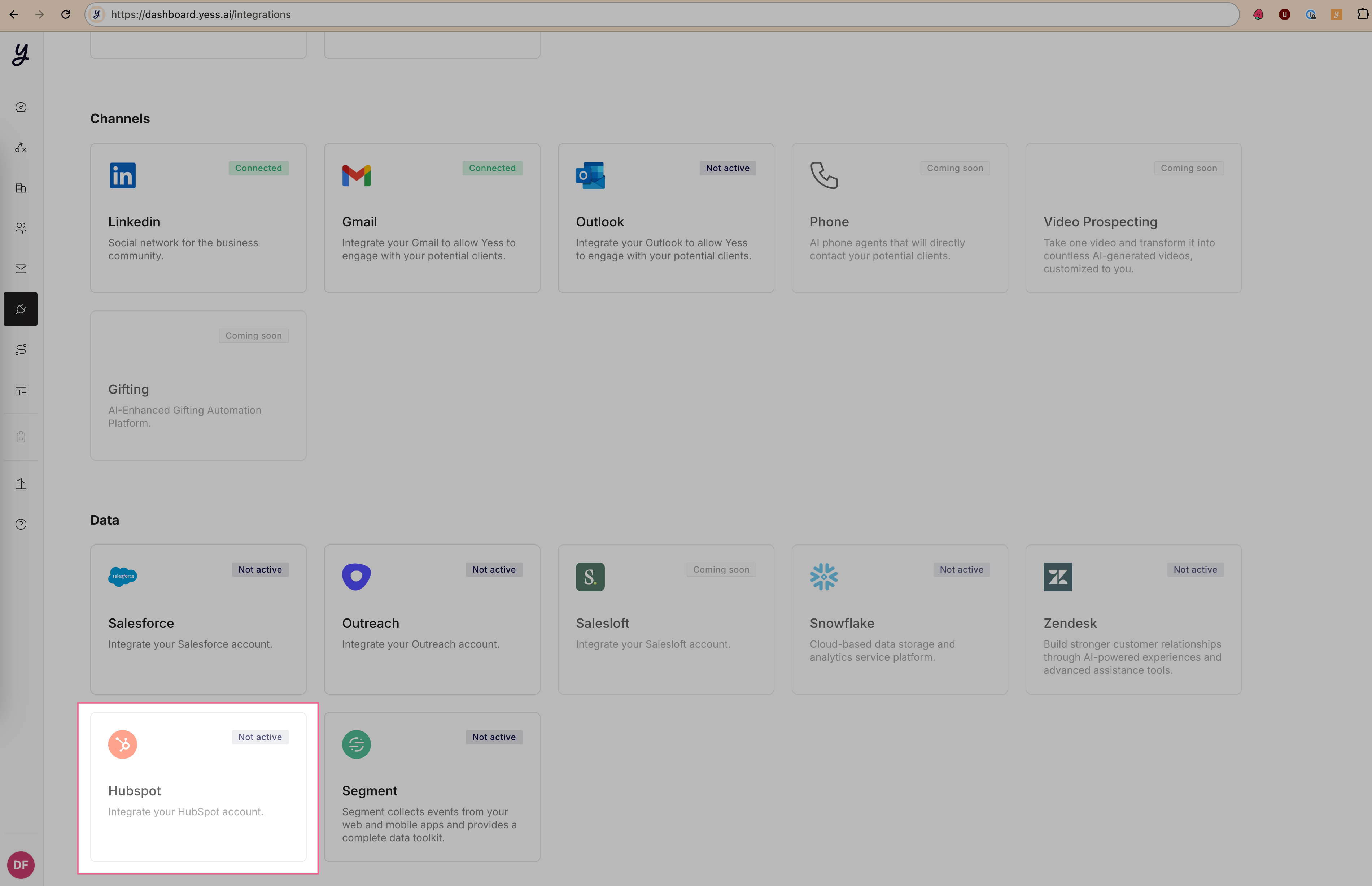
Authorize Access
You’ll be redirected to HubSpot to authorize Yess to access your account
- Log in with your HubSpot credentials if prompted
- Review permissions and click “Authorize”
Individual user connection ensures that when leads are synced between systems, they maintain the correct ownership attribution. Leads you create or modify in Yess will be assigned to you in HubSpot, and vice versa.
Importing from HubSpot to Yess
Once you’ve set up the integration and configured theyess_tag property, importing data from HubSpot to Yess is fully automated.
Automatic Sync Process
When you mark a contact or company in HubSpot by enabling theiryess_tag property, they will automatically sync to Yess. Here’s how it works:
Enable yess_tag
Navigate to any contact or company record in HubSpot and enable their 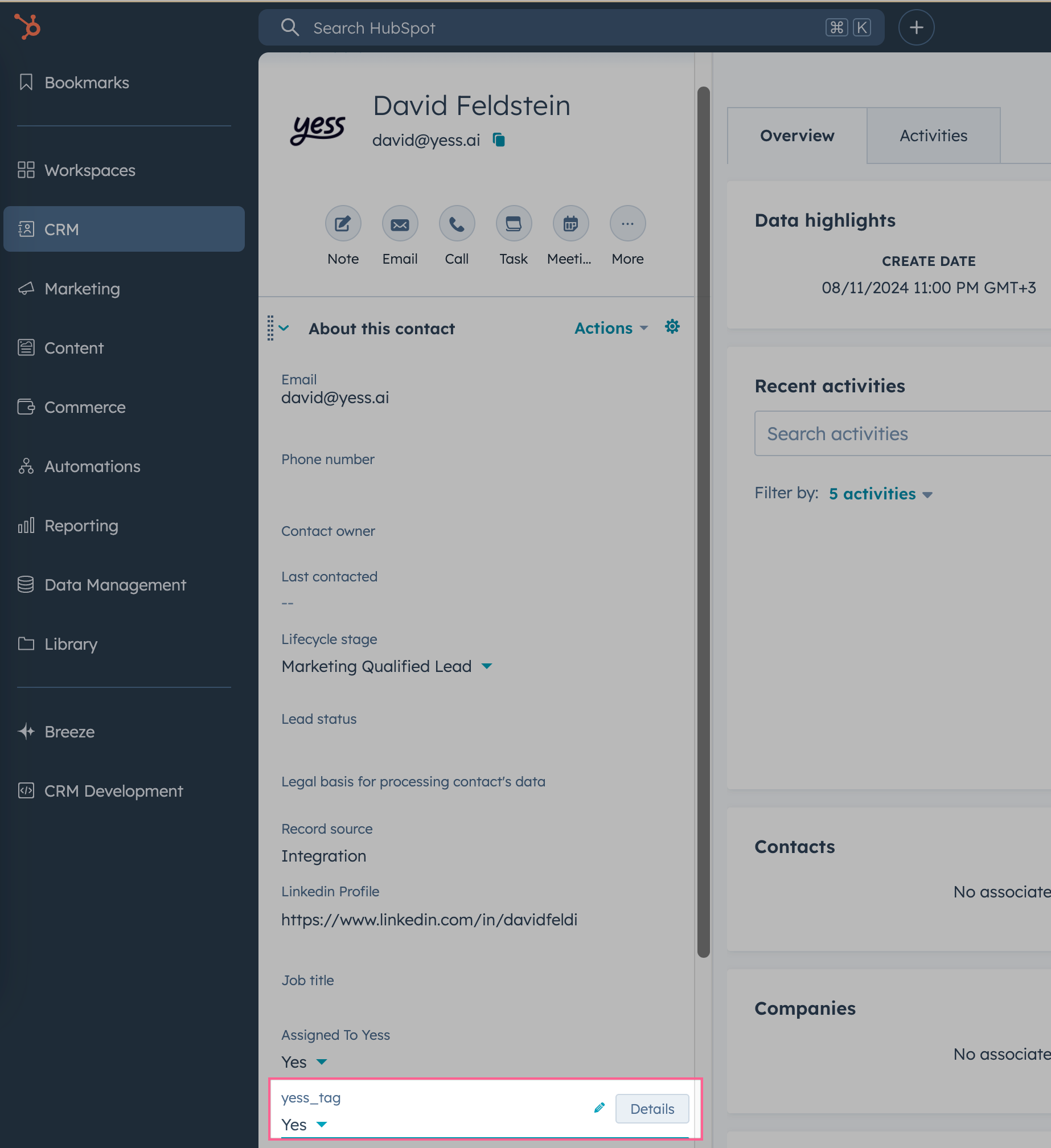
yess_tag checkboxBulk Tagging in HubSpot
To import multiple records at once:- Create a list or use an existing view in HubSpot
- Select the records you want to import
- Use HubSpot’s bulk edit feature to enable the
yess_tagproperty - All tagged records will automatically sync to Yess
Any updates to records in HubSpot will automatically sync to Yess as long as their
yess_tag property remains enabled.View Records in HubSpot
When contacts and companies are synced between Yess and HubSpot, they are automatically linked using email addresses (for contacts) and domain names (for companies). This linking enables:- Automatic activity logging
- Pulling Leads and accounts from HubSpot to Yess
- Writing activities to HubSpot from Yess
- Easy navigation between platforms
Viewing Yess Activities in HubSpot
All activities performed in Yess are automatically logged as engagements in HubSpot. To view these: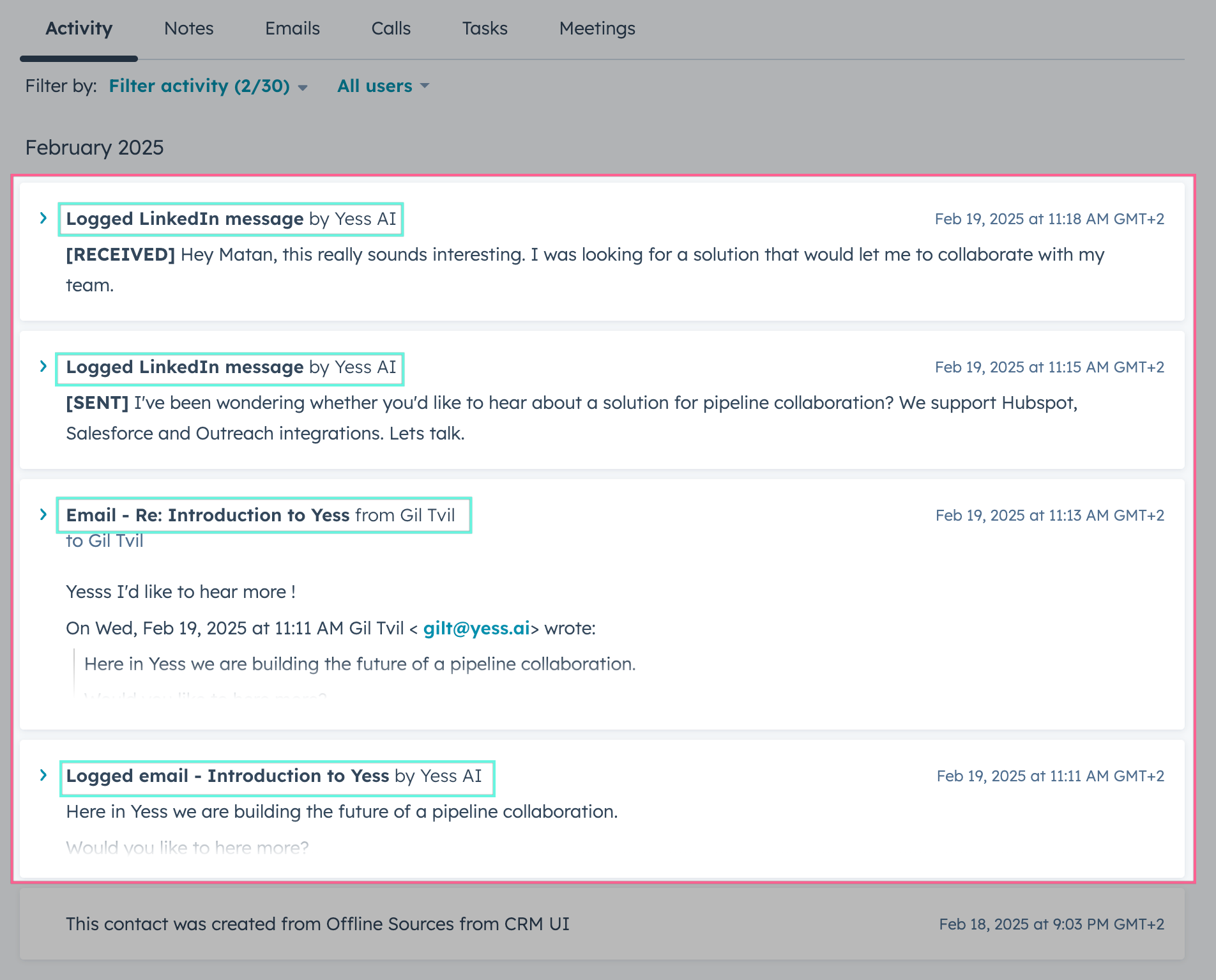
All synced activities will appear in HubSpot with “by Yess AI” as the source, making it easy to track actions taken through our platform.